
(Author: Richard Jorne. Please credit the source when sharing.)
Do you love using Option+Shift combo shortcuts? Are you a fan of apps like Xnip? After upgrading to macOS Sequoia, have those shortcuts suddenly stopped working?
Preface
I’ve always used Option+Shift+4 as Xnip’s shortcut. This way, Cmd+Shift+4 (the default system area screenshot shortcut) only differs by one key, making muscle memory easier.
After updating to Sequoia, I realized Option+Shift combos no longer work. But since I’m deeply accustomed to this setup, I decided to dig deeper.
This article explains the possible reasons and provides a practical solution.
Note: This fix isn’t limited to Xnip. Any sandboxed app can bypass this restriction using the same method.
Just replace /Applications/Xnip.app in the terminal commands below with your app’s path.
Why It Happens
This answer reveals that Apple intentionally blocked Option+Shift shortcuts in Sequoia. Discussions here clarify that this restriction applies only to sandboxed apps (required for App Store submissions). Non-App Store apps, which don’t enforce sandboxing, likely still work.
Unfortunately, Xnip seems to be distributed exclusively via the App Store. Unless the developer releases a non-App Store version, we’re stuck—unless we fix it ourselves.
The Fix
Theoretically, we can manually remove an app’s sandbox. After testing multiple methods, I successfully lifted the Option+Shift restriction on Xnip.
You might wonder: “Can I share the modified app?” But App Store apps are tied to your account, so redistributing them causes activation issues. For now, let’s focus on fixing it locally.
Warning: This process may reset some app data. Re-signing changes the app’s BundleID, making macOS treat it as a new app. Your original data remains intact but won’t load until you revert to the original BundleID.
Technical Details
Recent tests show that re-signing the app removes all entitlements, including sandboxing. Manual binary edits might not be necessary, but I’ll keep the advanced method as a backup.
Basic Method
Step 1: Close the App
Open Activity Monitor, search for “Xnip,” and quit all related processes.
Step 2: Run the Command
Open Terminal (search via Spotlight) and paste:
sudo codesign -d --force --verbose --deep --sign - /Applications/Xnip.app
Press Enter.
-d and --verbose enable detailed logs.
--deep signs all helper tools within the app.
--sign - signs without a certificate(which is the -).
You’ll be prompted for your password (no visible input). Enter it and press Enter.

If you see this error:

You will need to open System Settings. Then, under the section Privacy & Security, find App Management, and then enable Terminal’s permissions:
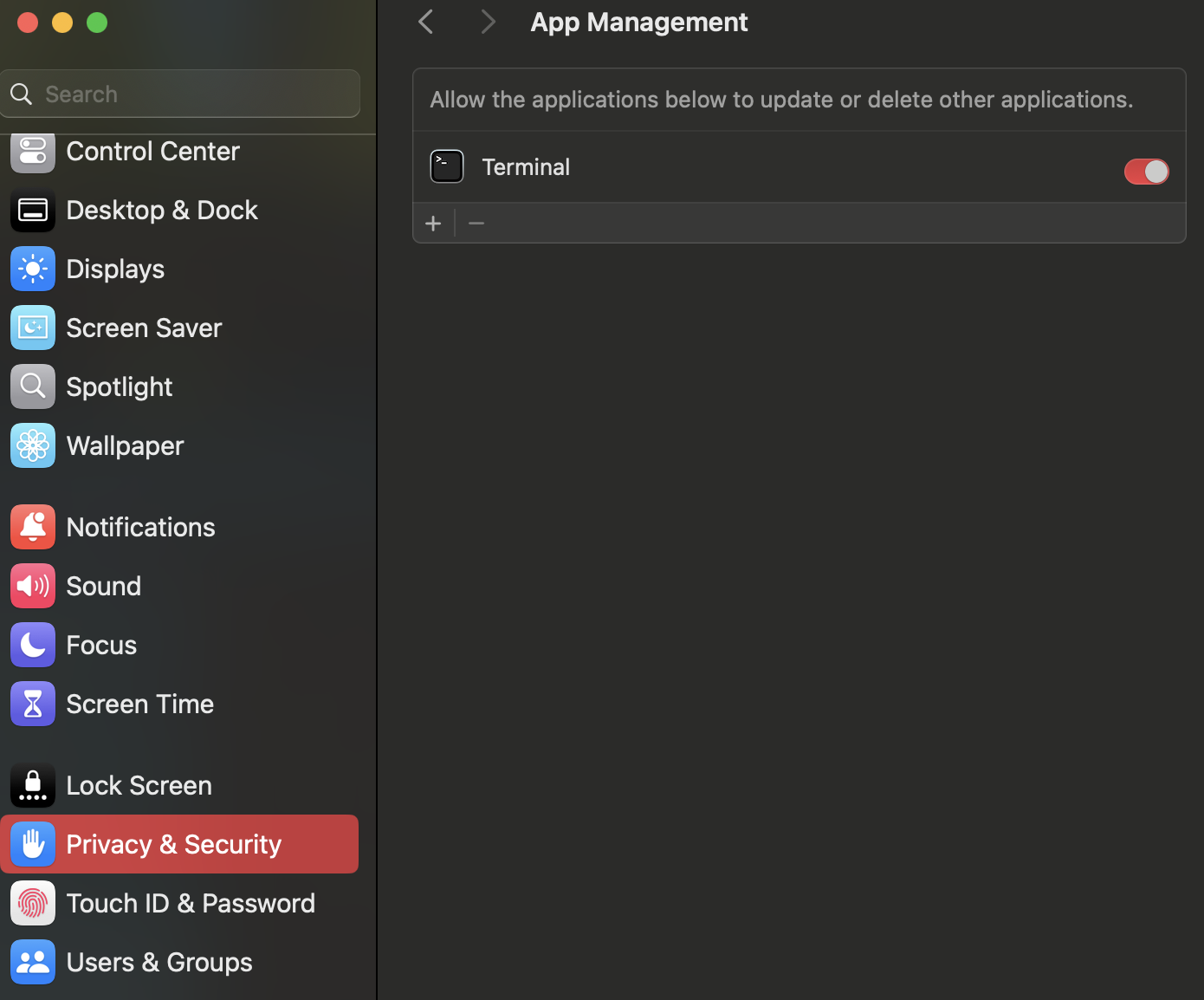
Quit & Reopen:
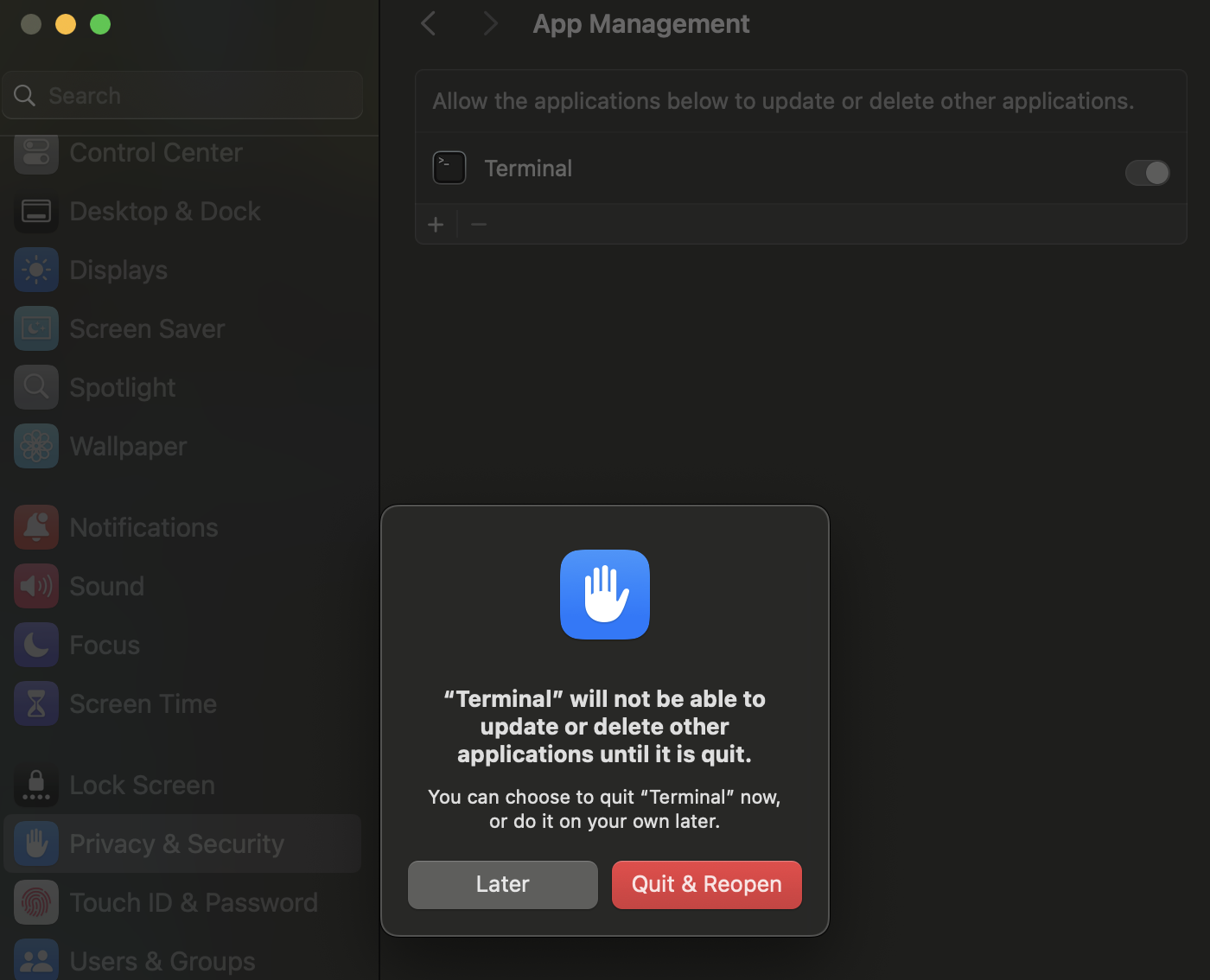
Make sure to open the terminal, and rerun the command.
Successful output looks like this:
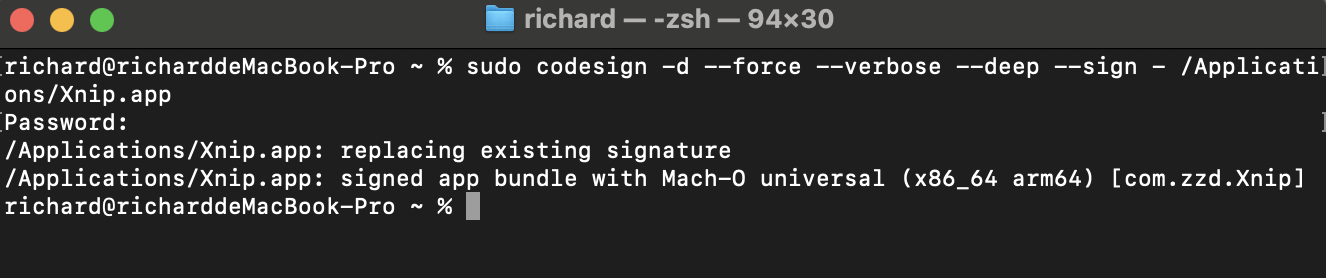
Step 3: Verify
Check if sandboxing is removed:
codesign -d --entitlements - /Applications/Xnip.app
If you don’t see:
[Dict]
	[Key] com.apple.security.app-sandbox
	[Value]
		[Bool] true
	...
this means you successfully get rid of the sandbox.
A failed example (sandbox remains active):
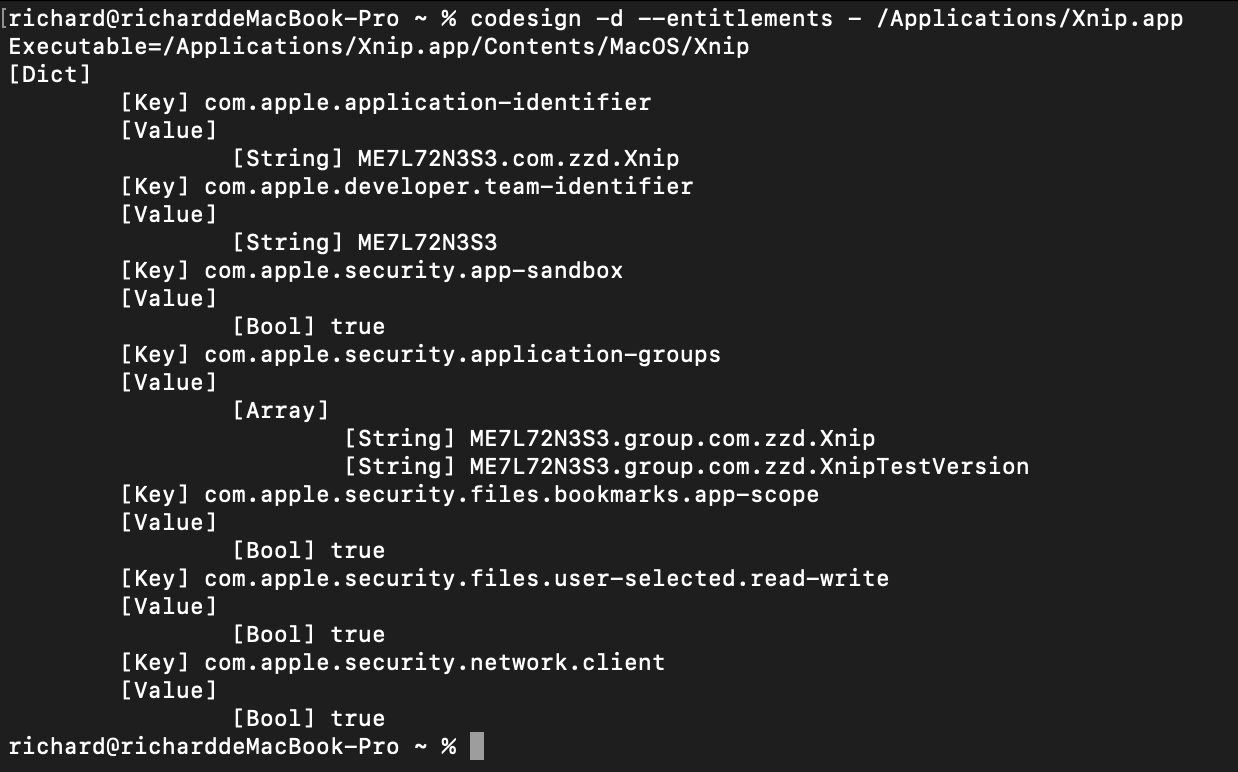
If you get rid of the sandbox, Xnip may request new permissions upon opening. Allow it and you’re good to go.
Done! If it still doesn’t work, try:
Advanced Method
This involves manually editing the app’s binaries to disable sandbox flags.
Step 1: Modify the Binary
Download a hex editor (e.g., Hex Fiend). Navigate to /Applications/Xnip.app/Contents/MacOS/ and copy the main executable (e.g., Xnip) to another folder (e.g., Downloads). Open the copied file in Hex Fiend.
Select Text, and then search for:
<key>com.apple.security.app-sandbox</key>
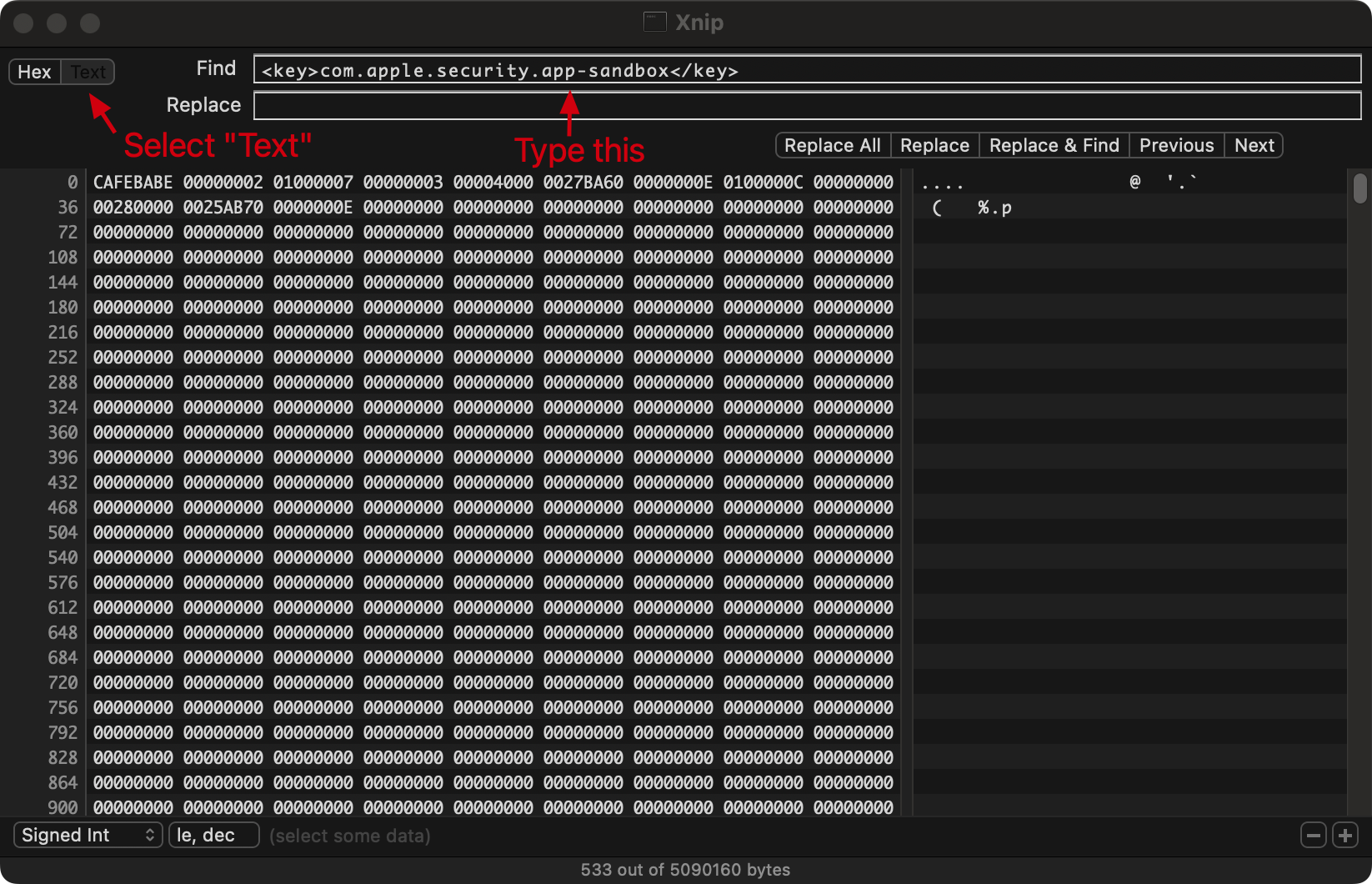
Replace every <true/> under this key with <fals/> (note: no “e”). Keep searching until all <true/> for <key>com.apple.security.app-sandbox</key> are replaced.
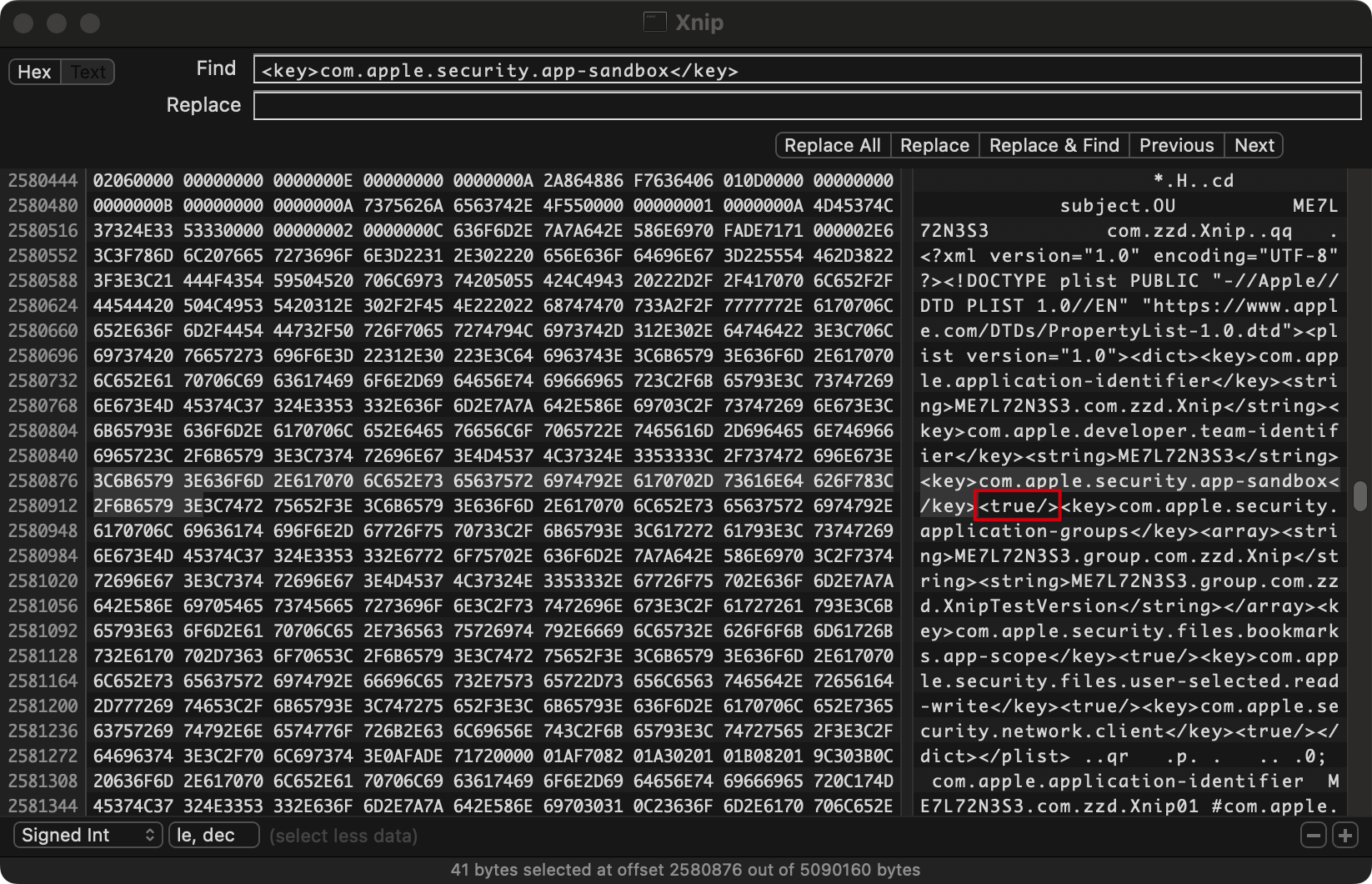
Save the file and replace the original in /Applications/Xnip.app/Contents/MacOS/.
Repeat this for all helper apps (e.g., in /Applications/Xnip.app/Contents/Library/LoginItems/).
Step 2: Re-sign the App
You can still use
sudo codesign -d --force --verbose --deep --sign - /Applications/Xnip.app
Alternatively,
For each modified .app (main app and helpers), run:
sudo codesign --force --verbose --sign - /path/to/helper.app
Replace /path/to/helper.app with the actual path.
Enjoy your restored shortcuts!
References:
Is there any way to disable sandbox https://stackoverflow.com/a/30449203/13478725 https://stackoverflow.com/a/27474942/13478725